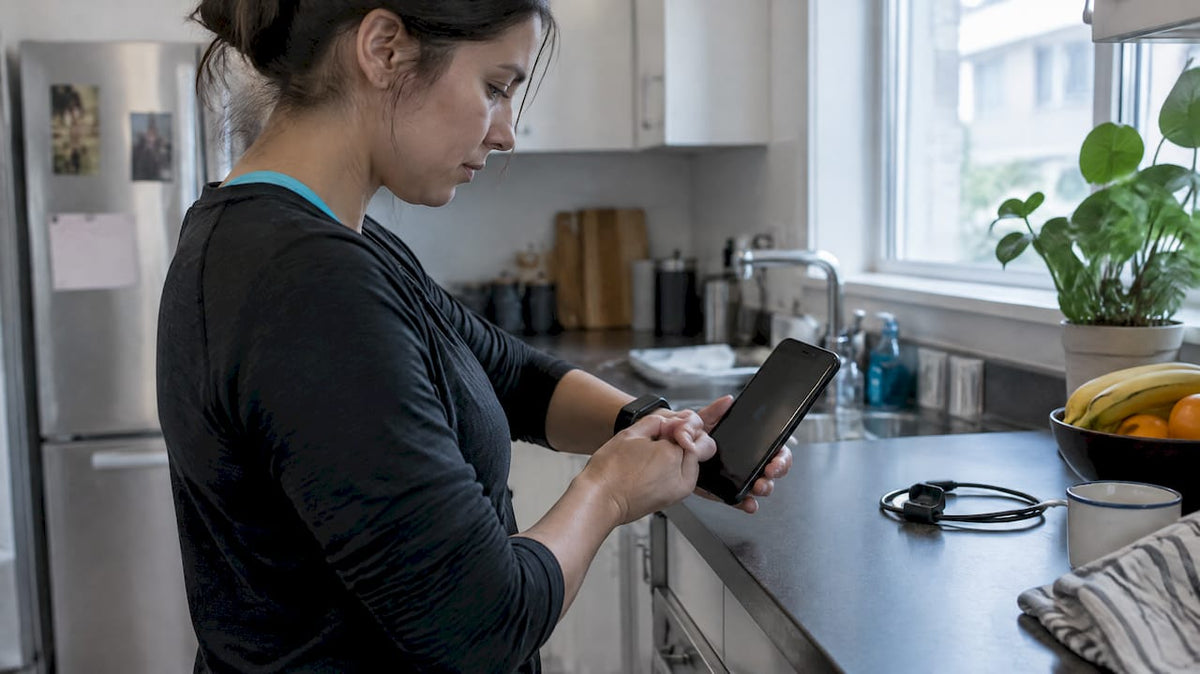
If your watch runs Wear OS, pair it with your phone, sign in with the same Google Account, and install Google Fit on both devices. If it doesn’t, route its data through Health Connect or a dedicated sync app instead. Either way, confirm permissions are granted correctly, because which metrics appear depends entirely on your device and app, not just on completing the connection.
TL;DR:
- Accurate syncing requires both devices to be signed into the same Google Account and Bluetooth to be active; delays are normal during initial pairing.
- Hardware and sensor availability largely determine which metrics appear in Google Fit, not the setup process itself.
- Using Health Connect as a bridge allows non-Wear OS devices to sync data, but missing metrics depend on the wearable’s capabilities and app support.
- Most common metrics like steps, heart rate, and sleep are supported, but advanced data like VO2 max depends on specific device sensors.
- Choosing devices with open data access and clear compatibility with Health Connect or Google Fit prevents data gaps and subscription-based restrictions.
Table of Contents
- How to pair a Wear OS watch with Google Fit
- Syncing non-Wear OS wearables through Health Connect
- Which data types Google Fit actually shows
- Fixing sync problems: a fast diagnostic checklist
- Choosing a wearable that actually shares its data
- What the setup guides don’t tell you
- Where Voltra fits into a Google Fit setup
- FAQ
- Sources
How to pair a Wear OS watch with Google Fit
Wear OS devices use the most direct route into Google Fit, and the setup follows a fixed order.
- Pair the watch with your phone using the Wear OS companion app, making sure both devices are signed into the same Google Account.
- Install Google Fit on the phone and the watch, then run through Fit’s on-screen setup on each.
- Grant sensor, location and activity permissions when prompted on both devices. Without these, Fit cannot log workouts or background activity.
- Open the Fit app to check that steps, Heart Points, workouts and heart rate are populating as expected.
Official guidance confirms the setup requires both devices and the matching account, and that the measurements you see depend on what sensors the watch actually has, so a budget watch and a premium one will not show identical metrics even after correct setup. Sync between the watch and the phone isn’t constant: Wear OS collects data continuously, even away from the phone, and uploads it once the two reconnect over Bluetooth or Wi-Fi. A fresh pairing can take a few minutes before the first full sync appears, so give it time before assuming something has failed.
Syncing non-Wear OS wearables through Health Connect
Watches and bands outside the Wear OS ecosystem need a broker. On Android, that broker is Health Connect, and it sits between your wearable’s own app and Google Fit.
- Open Google Fit and enable “Sync Fit with Health Connect” so the two share data in both directions.
- Manage what’s connected under Android Settings, then Apps, then Health Connect, where you can see and adjust every linked app.
- Inside your wearable manufacturer’s own app, look for a setting to link or manage connected services, then add Google Fit as a destination.
- Consider a third-party intermediary such as Health Sync when your device’s own app has no direct Fit integration, accepting that some metrics may not map cleanly across the bridge.
Health Connect keeps your health data stored locally on the device rather than routing it externally, and it gives you control over which apps can read or write each data type. Turning it on is not a guarantee that every metric will flow through: if your wearable’s app never publishes a given reading, there’s nothing for Fit to receive.
Which data types Google Fit actually shows
Google Fit draws a hard line between apps that can write new data and apps that can read existing data, and the two permissions are granted separately. An app might be allowed to log your steps into Fit without ever being allowed to read anyone else’s data back out, and some apps deliberately store data in isolation, which is why a dashboard can look authorised but still incomplete.
Commonly supported metrics include:
- Steps, distance and calories burned, tracked by almost every connected device.
- Heart rate and heart rate variability, where the watch includes the right sensor.
- Sleep duration and stages, SpO2 and weight or body fat, which depend heavily on hardware and the source app.
- VO2 max, supported on a smaller subset of devices and apps.
Support for any given metric depends on the device and the app publishing it, not on Google Fit itself, according to Google’s developer data-type documentation, which lists the available types and explicitly flags that coverage varies by source. Before relying on a wearable for a specific reading, check that table against the device’s own specifications, and review connected apps regularly inside Fit and Health Connect to revoke anything you no longer use.
Fixing sync problems: a fast diagnostic checklist
Most sync issues trace back to a handful of causes, and working through them in order saves time.
- Check Bluetooth is on, the watch and phone are close together, and both are signed into the same Google Account.
- Confirm your phone has an active Wi-Fi or mobile data connection, since Fit needs it to upload.
- Force a sync from the phone by opening Google Fit, going to Journal, then Sync, and separately trigger a sync from the wearable’s own app.
- Update or reinstall Google Fit, Health Connect and the wearable’s app if nothing changes.
- Disconnect and reconnect the problem app inside Fit’s connected apps settings, then allow several hours before reconnecting again.
Google’s own troubleshooting guidance for mismatched figures between watch and phone confirms that syncing is intermittent by design to save battery, so a stale dashboard is often a timing gap rather than lost data. If the steps above don’t resolve it after a few hours, the fault usually sits with the device’s sensor firmware rather than Fit, and that’s when it’s worth contacting the manufacturer’s support line directly.
Pro Tip: Force a sync right after a workout rather than waiting for the next scheduled upload, it settles most “missing data” complaints within minutes.
Choosing a wearable that actually shares its data
The sync mechanics only matter if the device feeds Fit something worth looking at. A watch that quietly stores sleep stages in its own closed app, with no Health Connect support and no export option, leaves you locked out of your own numbers regardless of how well you follow the setup steps.
Before buying, check whether a device lists Health Connect compatibility or a direct Google Fit integration, not just “syncs with your phone”. Also check what happens to historical data if you stop paying for an app, since several wearable brands gate full metric history behind a subscription. Voltra’s devices are built around a one-time purchase with lifetime access to the companion app, which matters here because you’re not later locked out of your own heart rate or sleep history by a lapsed plan. When comparing trackers, also look at how step counts and sleep stages are measured and reported, since accuracy varies more by sensor and algorithm than by brand marketing.
Prefer devices and apps that let you see and adjust read and write scopes individually rather than an all-or-nothing toggle, it gives you far more control over what actually leaves the device.
What the setup guides don’t tell you
Most sync tutorials treat the connection itself as the finish line, as if ticking every permission box guarantees a complete dashboard. It doesn’t. The real bottleneck is almost always upstream: whether your specific watch model’s firmware publishes heart rate variability or SpO2 at all, something no amount of correct pairing will fix.

The conventional advice to “just reinstall the app” solves a narrower set of problems than it gets credit for. It fixes stalled syncs and permission glitches well, but it does nothing when a metric simply isn’t supported by your hardware, and plenty of people chase that fix for days before realising the gap is structural, not technical.
If you’re setting up a new device, spend five minutes on the data-type documentation before you spend an hour in troubleshooting menus. Confirm the metric exists for your model first, then worry about pairing and permissions. That order saves more frustration than any force-sync button ever will.
— Sam
Where Voltra fits into a Google Fit setup
If you’d rather not gamble on whether a wearable will actually expose the metrics you want, it helps to start with a device built around open data access rather than a subscription wall. Voltra’s trackers and scales use a one-time purchase with free lifetime access to the companion app, so your sleep, heart health and activity history stay available without a recurring fee eating into the value of the hardware.
VOLTRA AIR suits readers who want a straightforward daily tracker, VOLTRA PRO adds the sensor range for heart health and recovery metrics, and VOLTRA CORE sits between the two for a core feature set without the extras. Before buying any wearable, Voltra included, check its Health Connect or Google Fit compatibility against the specific metrics you want to track. Browse the collections above to compare specifications and find the model that matches your routine.
FAQ
Is Google phasing out Google Fit?
Google has shifted its health data strategy towards Health Connect as the underlying data layer on Android, with Google Fit continuing to serve as a tracking app that reads and writes through it. For sync purposes, the practical takeaway is to make sure Health Connect is enabled alongside Fit rather than relying on Fit in isolation.
Why is Google Fit not syncing with my watch?
The most frequent causes are a watch not currently connected over Bluetooth, mismatched Google Accounts between phone and watch, or permissions that were never granted during setup. Running a force sync from the Journal tab and confirming both devices use the same account resolves most cases.
What wearables work with Google Fit?
Any Wear OS watch works natively once paired and signed into the same account as the phone, and most Android wearables can connect through Health Connect if their manufacturer app supports it. Coverage for specific metrics such as SpO2 or VO2 max still depends on the device’s own sensors, as set out in Google’s data-type documentation.
What app is replacing Google Fit?
Health Connect is the data layer Google has built to sit beneath Fit and other health apps, centralising permissions and storage on the device rather than acting as a replacement tracker interface. Fit remains the user-facing app, so enabling Health Connect alongside it, rather than choosing one over the other, gives the most complete picture.
Share:
Athletes: Which to Wear for Intervals? Evidence on Wrist vs Chest Heart Rate
UK Buyers: Pick a Smart Scale by App, Not Wi‑Fi or Bluetooth